Installation
This tutorial describes how to install the ABStractme tool, which is a plugin for the Eclipse IDE.
Make sure you have the latest version of Eclipse installed on your computer. Download the latest Eclipse version at www.eclipse.org/downloads/.
Installing the Plugin on Eclipse
To install the ABStractme plugin, open Eclipse and go to Help > Install New Software to open the Plugin Selection Window.
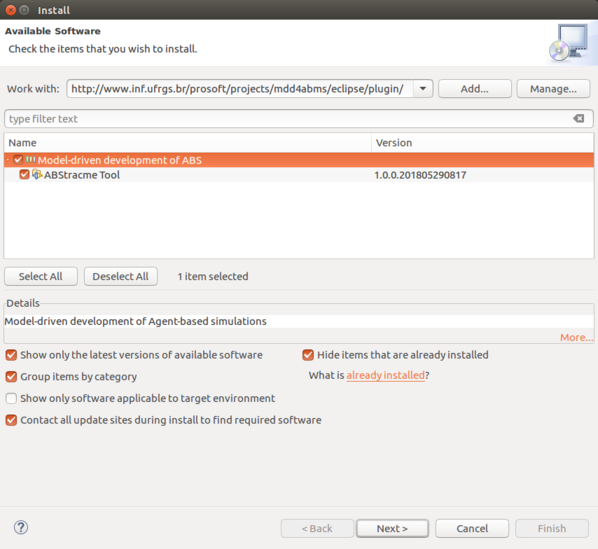
To install the ABStractme plugin, type the following URL in the "Work with" field, as shown in Fig. 1
http://www.inf.ufrgs.br/prosoft/projects/mdd4abms/eclipse/plugin/
After that, "ABStracme Tool" will be shown in the "Name" field as. Tick it and click "Next".
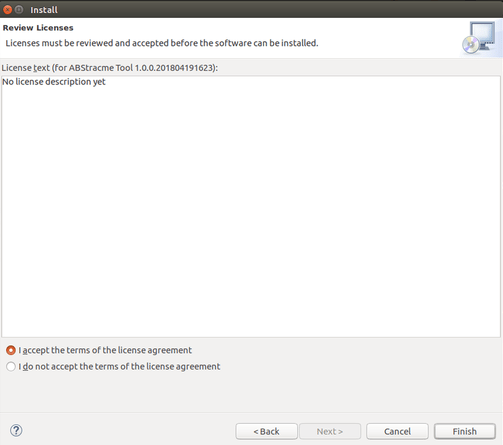
In the next window just click "Next". Then, mark the "I Accept ..." option and select "Finish" in the Review Licences Window, as shown in Fig. 2
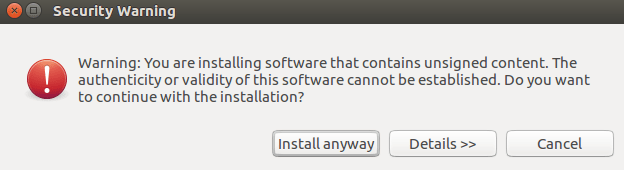
The installation will start. At a certain point, a security warning will pop-up as shown in Fig. 3. Select "Install Anyway".
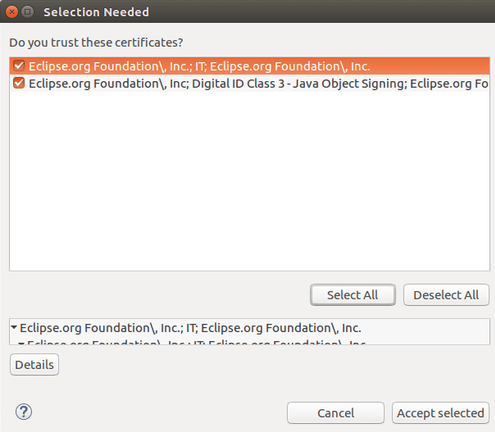
The installation process may ask you to accept some Eclipse certificates, as shown in Fig. 4. Click on the buttons "Select All" and "Accept selected".
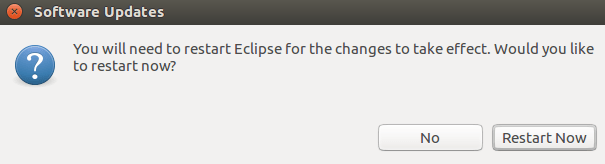
After the installation finishes a window will pop-up as shown in Fig. 5. asking to restart Eclipse. Click on the button "Restart Now".
After Eclipse restarts the installation is complete. The plug-in should be ready for use.
To check whether the plug-in was successfully installed, go to Help > About Eclipse and then click on the Installation details button. The ABStractme plugin should be listed in the Installed software tab, as shown in Fig. 6.